




 India
India NRI
NRI
What changes for you?
Nothing at all! The way you make payments today will remain the same. Just to refresh, we have listed down the below steps to add funds on our Axis Direct mobile applications and Website after you login. While making your payments, you can verify the genuineness of the UPIhandles on the payment app while making the payment!
Login to your Axis Securities Broking account using your credentials.
Investor App Steps:
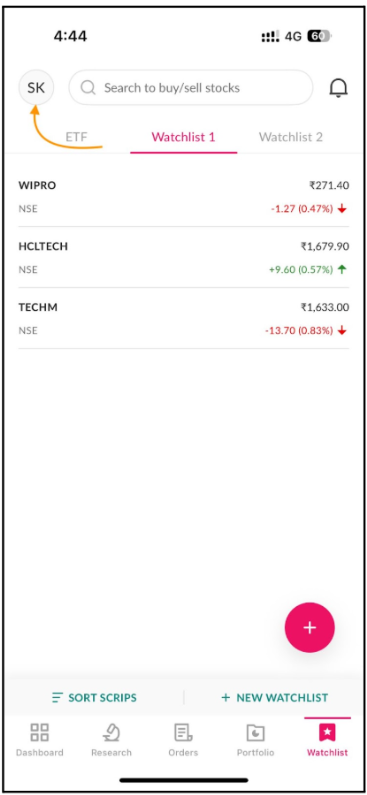
1.Tap on Profile Icon
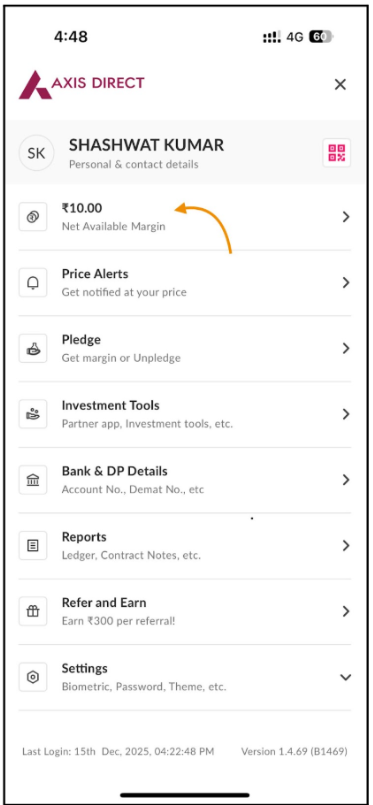
2.Tap on available funds
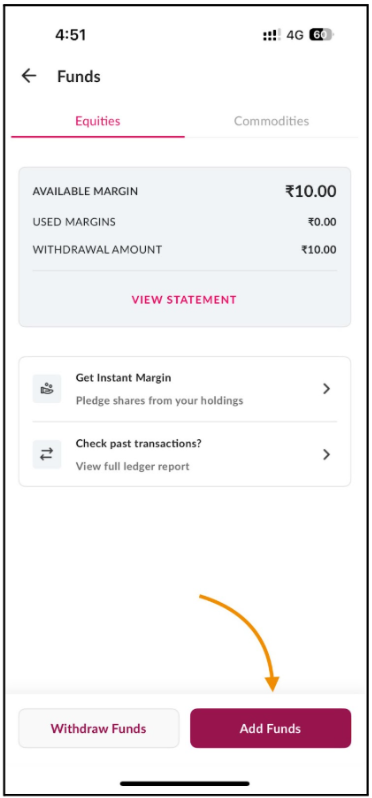
3.Tap on “Add Funds”
4.Enter the amount
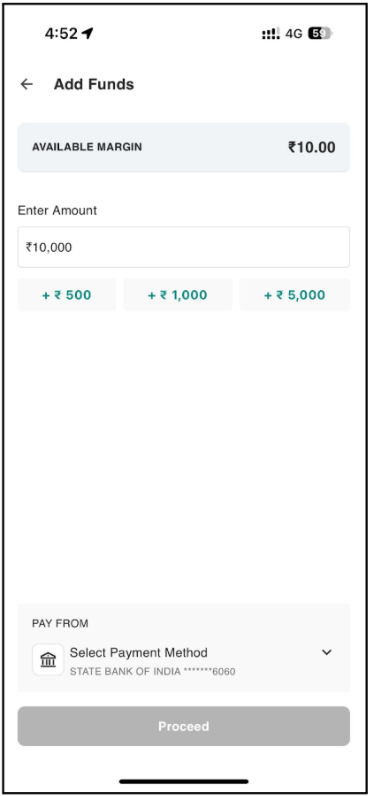
5.Select your bank account (if multiple bank accounts)
6.Choose "UPI" as the payment method.
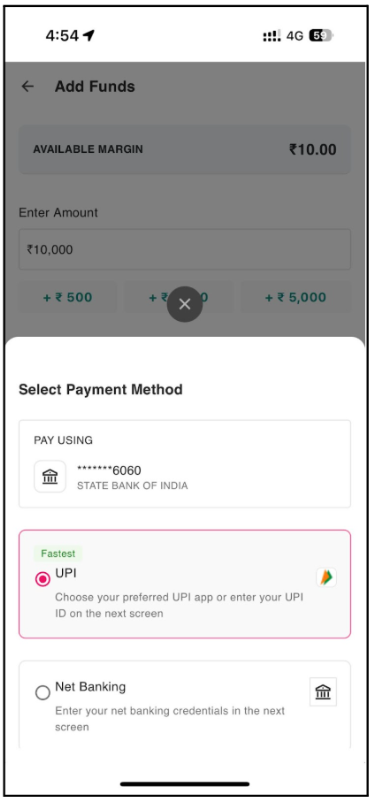
7.Click on “Proceed”
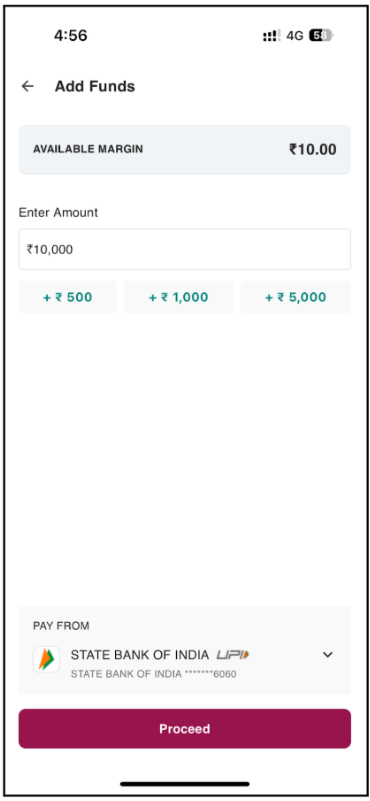
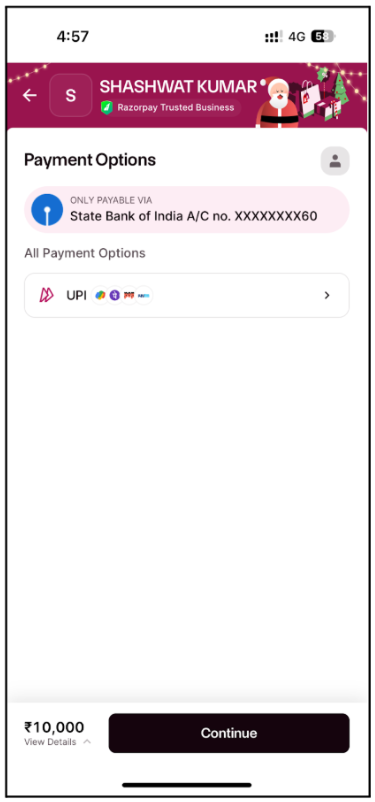
8.Tap on “UPI”
9.Enter your UPI ID linked to that bank account.
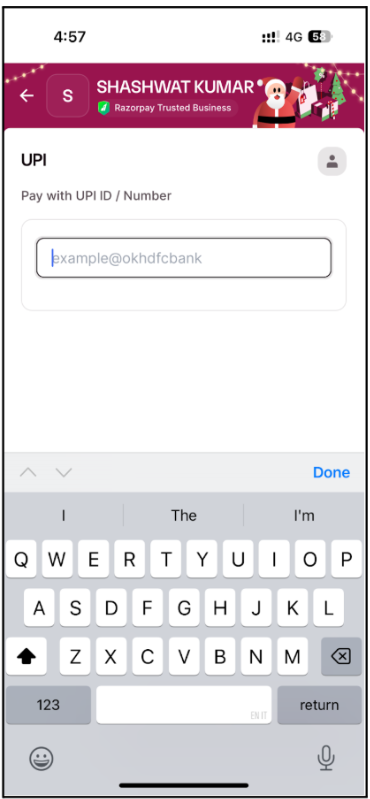
10.Click "Continue"
11.Authorize the payment request in your UPI app
Trader App Steps:
1.Tap "Funds"
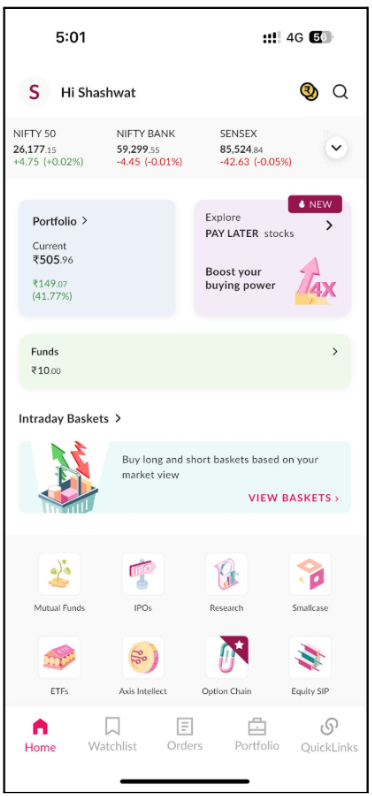
2.Select Razorpay and tap on “Add Funds”
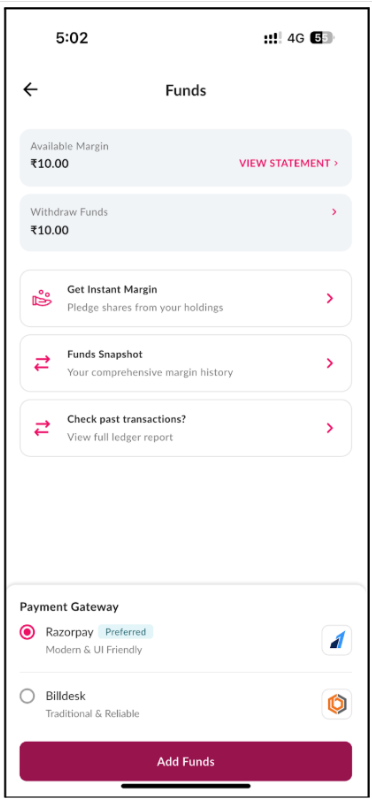
3.Enter the amount
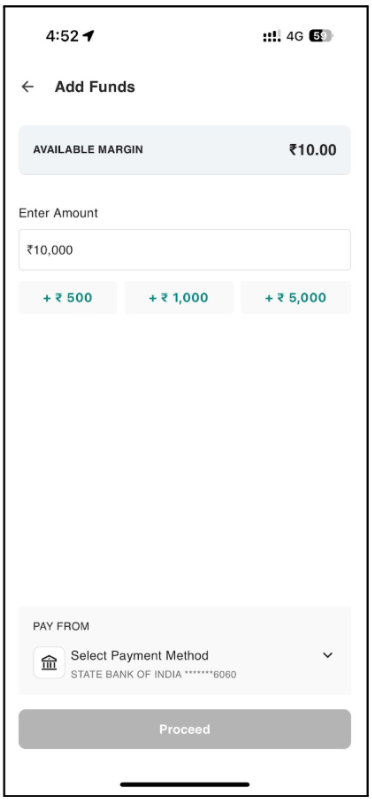
4.Select your bank account (if multiple bank accounts)
5.Choose "UPI" as the payment method.
6.Click on “Proceed”
7.Tap on “UPI”
8.Enter your UPI ID linked to that bank account.
9.Click "Continue"
10.Authorize the payment request in your UPI app
Investor Website Steps:
1.Click on “Funds” on top right"
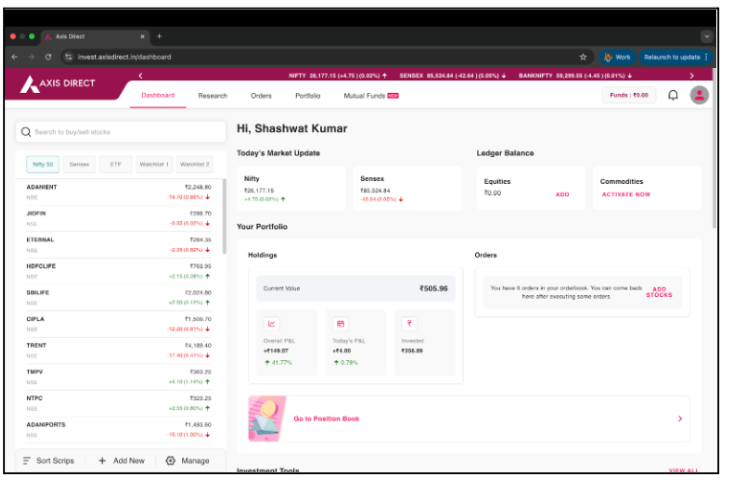
2.Click on "Add Funds"
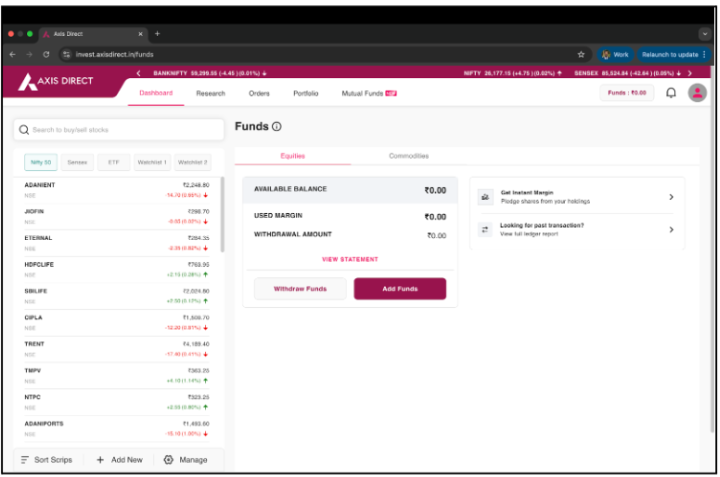
3.Enter the amount
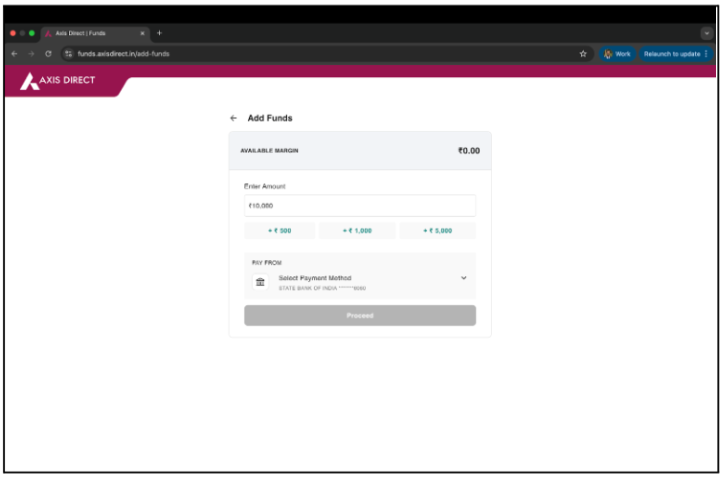
4.Select UPI as your payment method and choose your bank account then click on “Proceed”
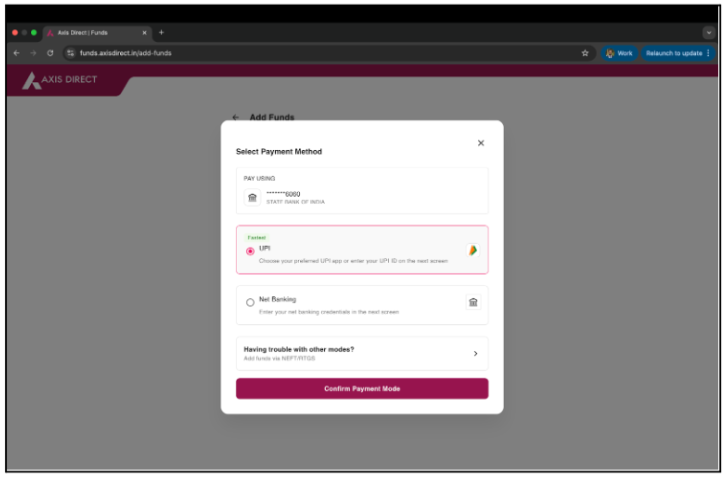
5.Click on “Show QR” to see the QR Code with the Green Thumbs Up Sign
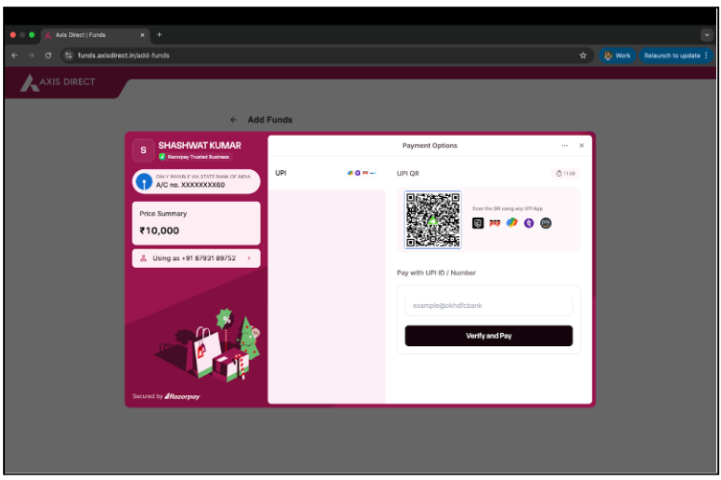
6.Scan and pay or enter your UPI ID and click on “Verify and Pay”
7.Authorize the payment request in your UPI app
SimpleHai Website Steps:
1.Click on “Limits”
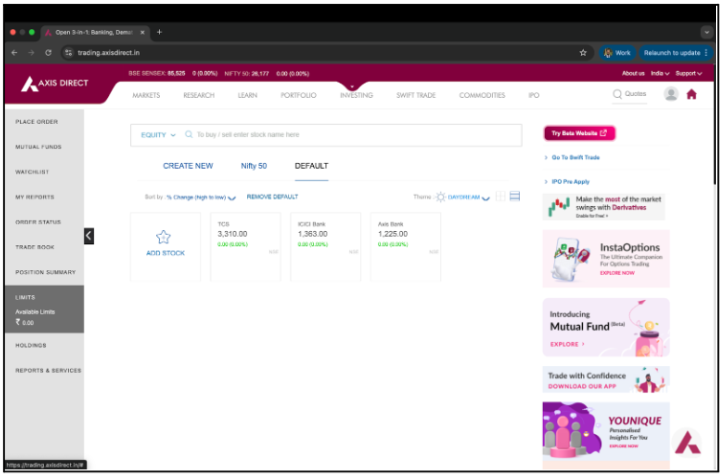
2.Click on "Add Funds"
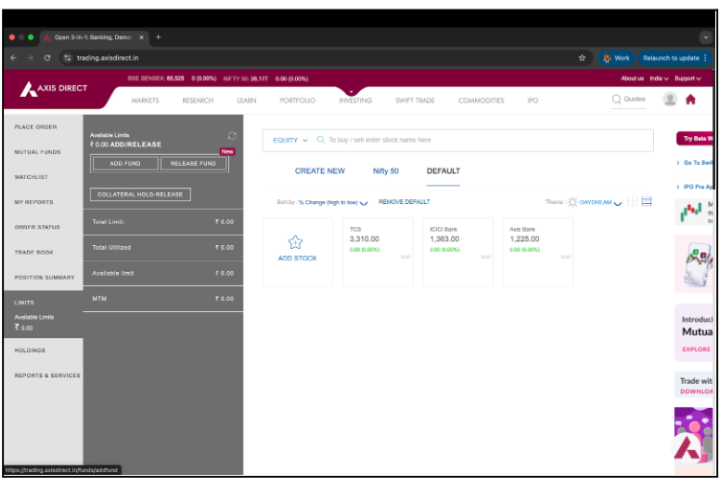
3.Enter the amount
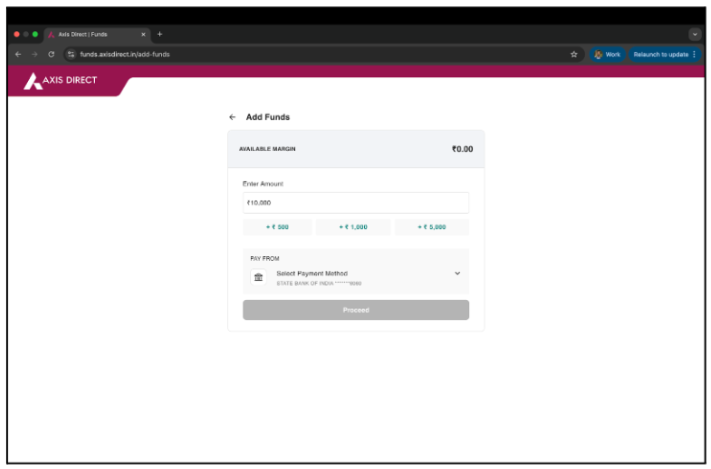
4.Select UPI as your payment method and choose your bank account then click on “Proceed”
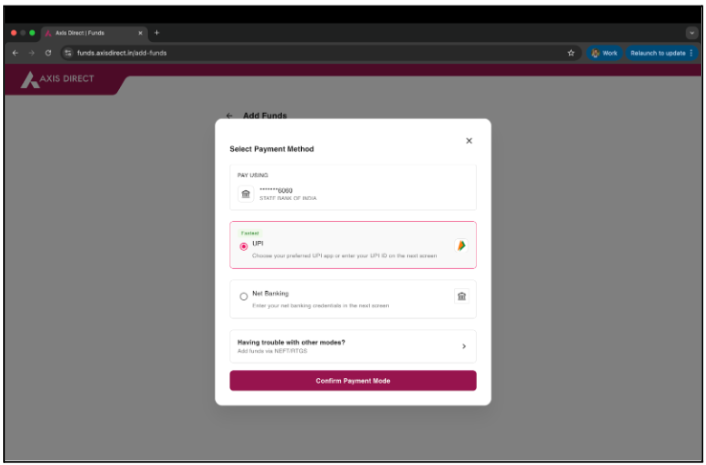
5.Click on “Show QR” to see the QR Code with the Green Thumbs Up Sign
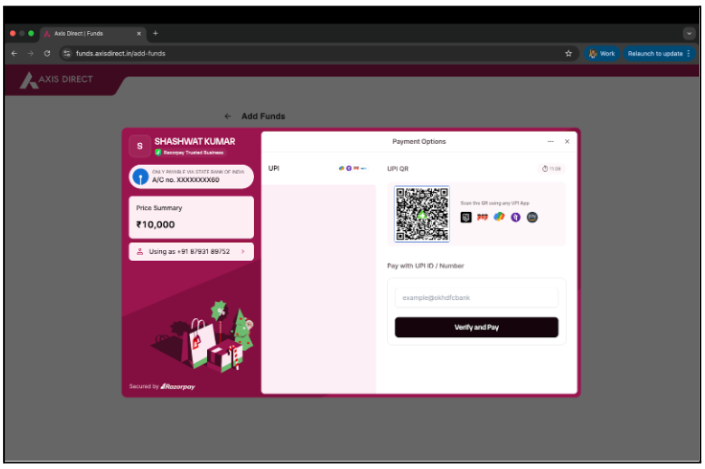
6.Scan and pay or enter your UPI ID and click on “Verify and Pay”
7.Authorize the payment request in your UPI app
END